Tags help you mark and organize work items in your plan. You can use tags to track priority, flag risks, or identify items that need attention.
Why use tags
Track priority. Use tags like “High,” “Medium,” and “Low” to mark your most important work so your team knows where to focus.
Flag risks and blockers. Mark items that are at risk, blocked, or need attention so they stand out in your plan.
Show team ownership. In plans with multiple teams, tag work by team so everyone can see their responsibilities and dependencies.
Start conversations. Tag items that need discussion or clarification before the team moves forward on them.
Add Tags
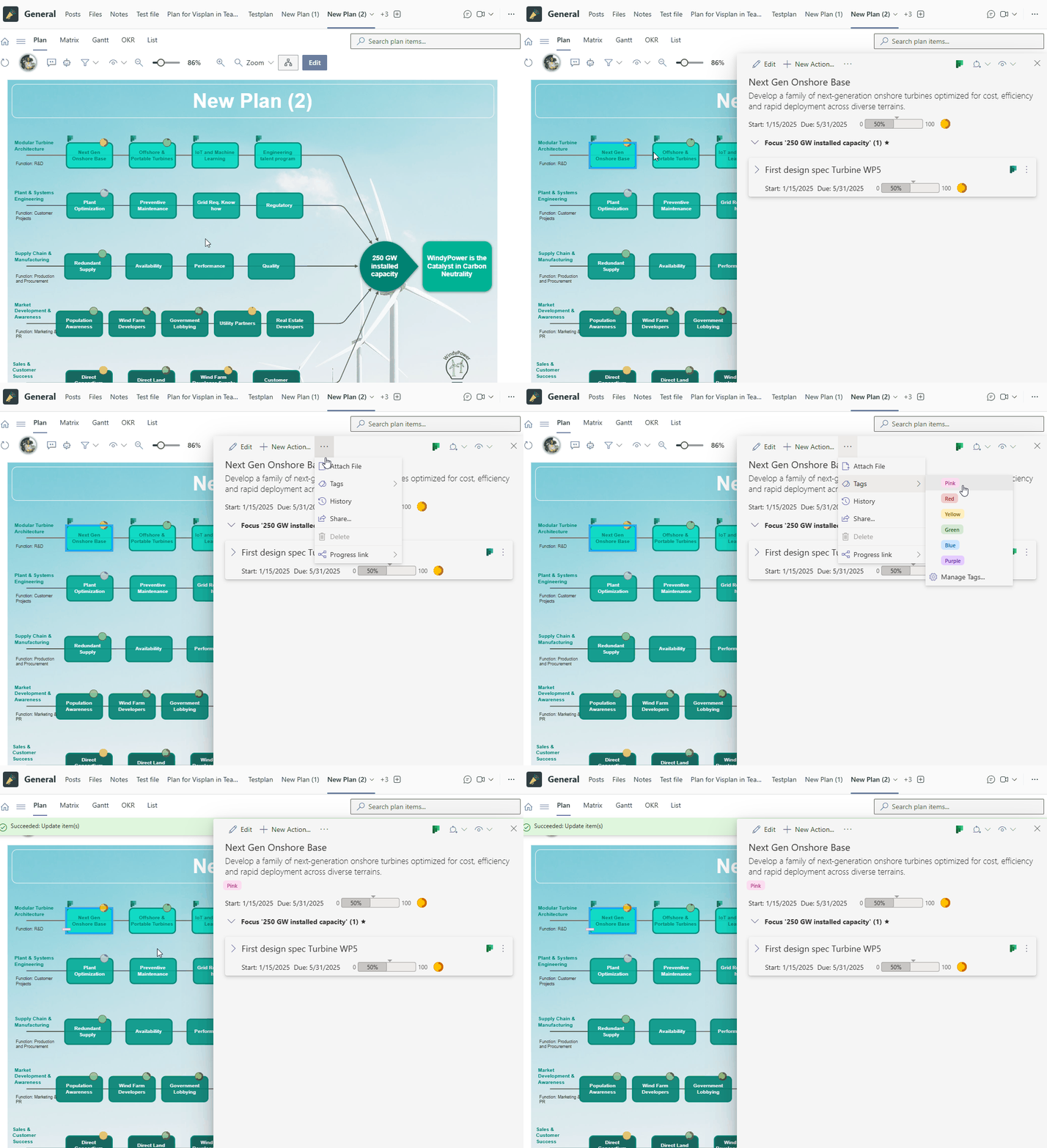
Click on the item ( Ambition, Focus or in the sidebar Action, Objective, Key Result) you want to tag
In the sidebar, ckick the More menu (three vertical dots, select Tags
Choose a Tag by its color.
The tag is applied immediately
Tags- Add Tag to Ambition
Customize your tags
By default, VisPlan comes with 6 basic tags, with up to 25 available, same 25 as Microsoft Planner.
If you want to adjust tag names or enable additional tags, you can configure them.
In the top left corner, open the Menu
Select Plan Settings
Choose Manage Tags
You can:
Use the basic 6 tags as-is, or
Enable all 25 available tags, or
Adjust tag names to match your team’s terminology
Select Save
Change Tag Name
To change a tag name later, click the Cog icon (cog) at the bottom of the each items Tag menu to quickly rename the Tag.
Sync tags to Planner labels
If you link VisPlan to Planner, your VisPlan tags automatically sync to Planner as labels. (If that was chosen when setting up the Planner setting. This keeps your priority and status information consistent across both VisPlan and all Planner plans. Optionally VisPlan can sync the Action’s assigned Focus as a label in Planner.
Your team sees the same tags (in VisPlan) and labels (in all Planner plans) whether they’re working in VisPlan or Planner. If multiple Planner plans are synced with the same VisPlan Plan, VisPlan requires that All Tags and Labels are synced the same way either as Labels or Focus and that each color has one name.
It can not be individually defined per plan but is unified in VisPlan making the labels unified and aligned throughout all connected planner plans.
Tag tips
Keep tag names short and consistent
Tags appear in the Plan View, Sidebar and List view .