How to View All Actions Planned Between Two Dates in VisPlan
Posted
Updated
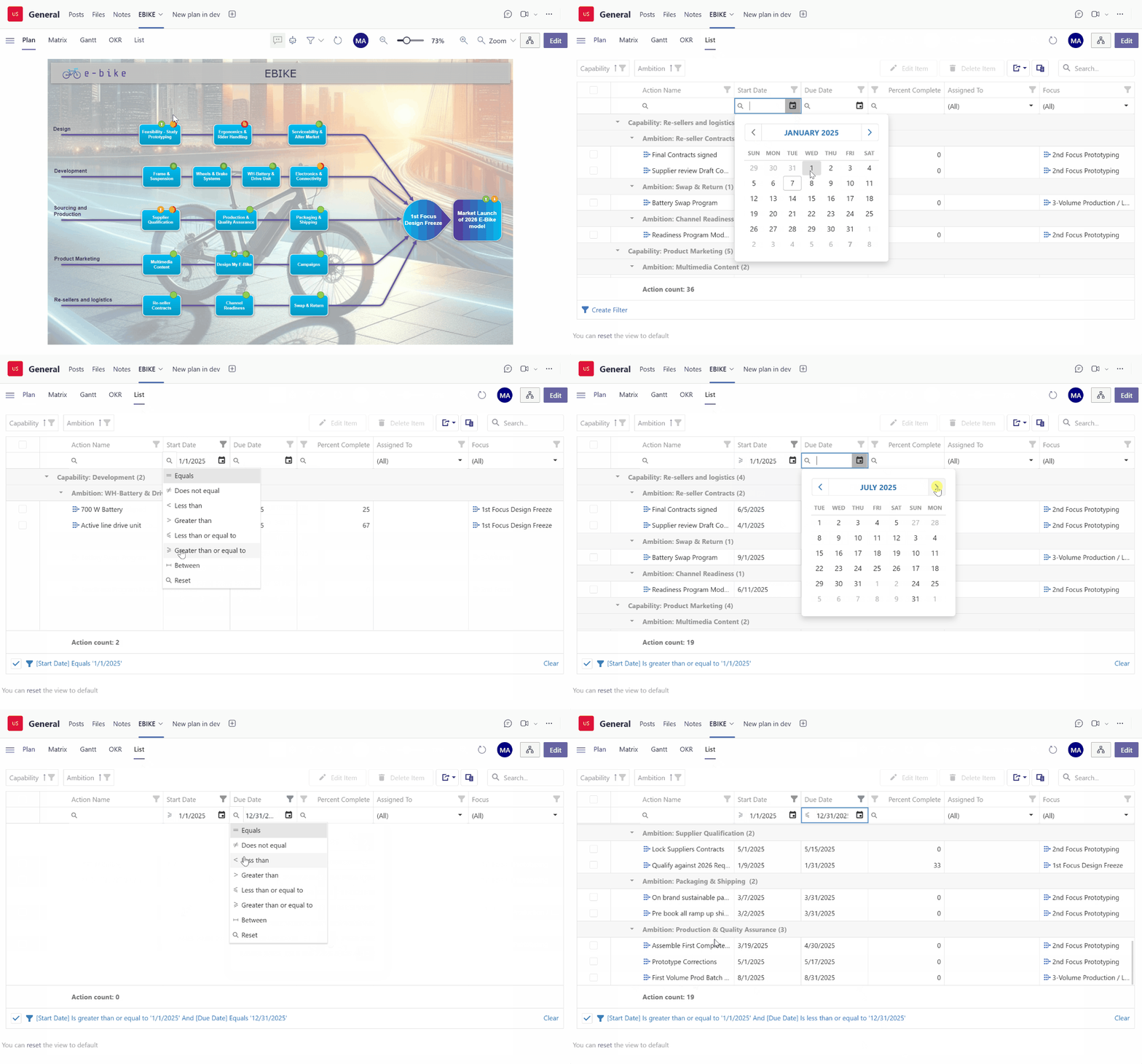
Managing tasks effectively requires a clear view of actions scheduled within a specific timeframe. This can be done using the Focus in the plan view or the Gantt-view, but to view all actions planned between two dates, you can also use the list view with a filter. This guide will show you how to set up these filters easily.
Follow these steps to view all actions planned between two specific dates in VisPlan:
Navigate to the List View Tab
Go to the List View tab in VisPlan.
Set the Start Date Filter
Locate the columns for Start Date and Due Date.
Click on the Start Date column header.
Set the due date, i.e, 1 January 2025.
By default, the operation is set to “equals,” which filters for the exact date.
To view actions that start after a specific date, change the operator to “≥ Greater than or equal to.”
Set the Due Date Filter
Click on the Due Date column header.
Set the due date, i.e, 31 December 2025.
Change the operator to “≤ Less than or equal to” to include all actions ending on or before this date.
Apply the Filters
The filter is automatically applied. You now have a list that includes all actions planned between your selected start and due dates.
Add Additional Filters (Optional)
You can further refine your list by adding additional filters such as Assignee, Capability, and more to tailor the view to your specific needs.
Clear the Filters
The filter settings will be saved for when you return to this view.
To clear the filter, simply click Clear in the bottom left corner.
More about the List View
The learn more about the List view, please find our Knowledge Base Article about How to use the List View