
How to Use the Gantt View in VisPlan
The Gantt view is the easiest way to check your schedule in VisPlan. It shows each Action as a bar on a timeline, so you can understand timing, overlap, and workload at a glance.
Open the Gantt view
- Open any plan.
- Click Gantt in the top view menu.
Important: Actions without Start and Due dates do not appear in Gantt. Add both dates to include them.
Understand what you see
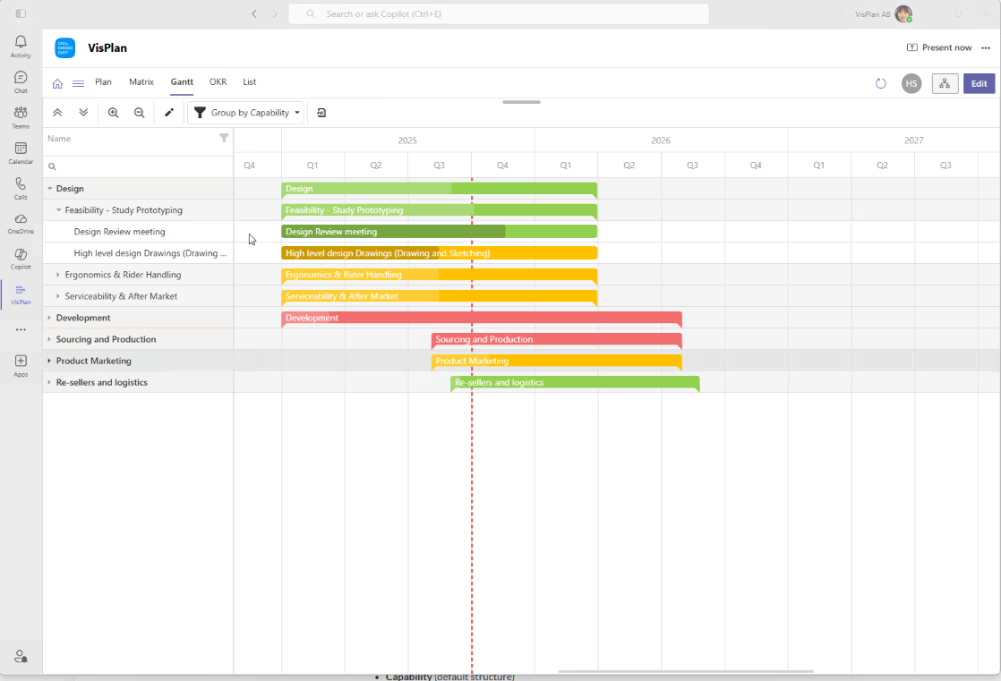
The Gantt view has two main areas:
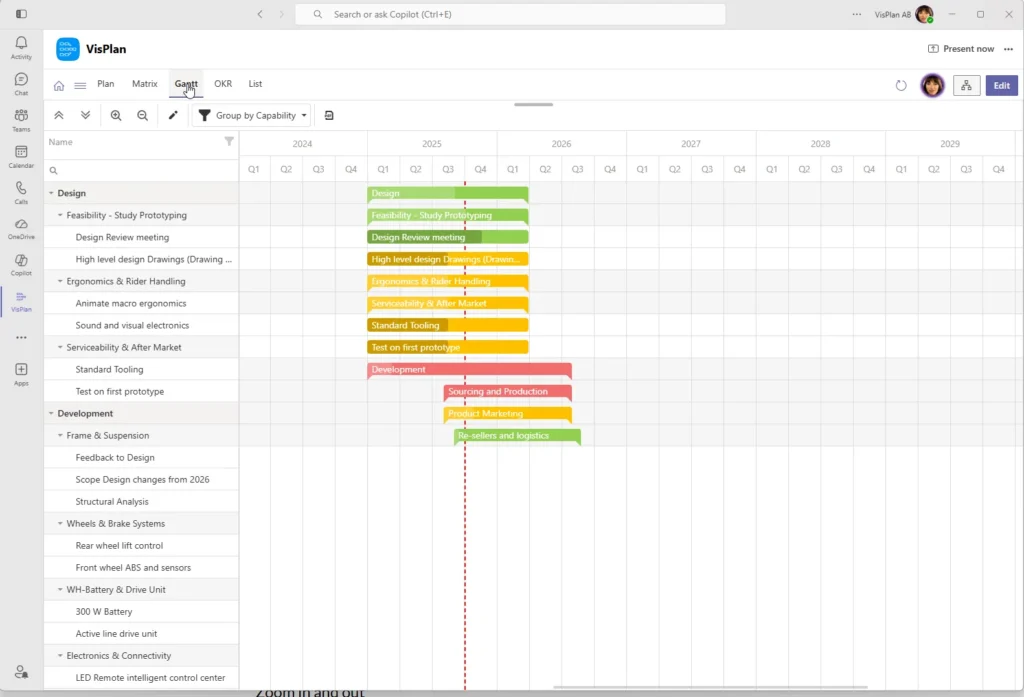
- Left side: Action list grouped by your plan structure.
- Right side: Timeline where each Action is shown as a bar.
- Vertical red line: Today’s date.
How to read a bar:
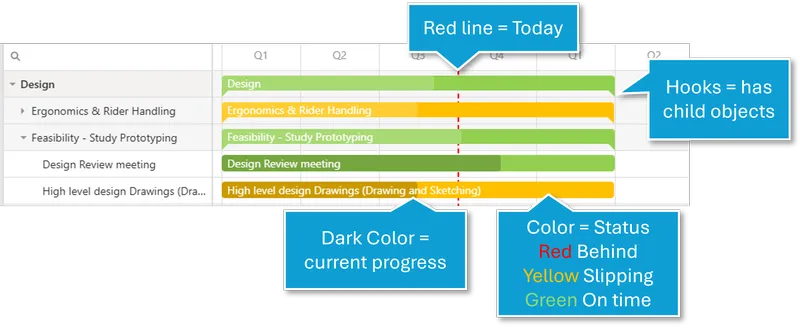
- Bar start = Action start date
- Bar end = Action due date
- Bar length = Action duration
- Bar color = progress state
- Bar dark color =current progress
See details and edit
Hover to view dates and progress.
Double-click to open and edit.
Zoom in and out
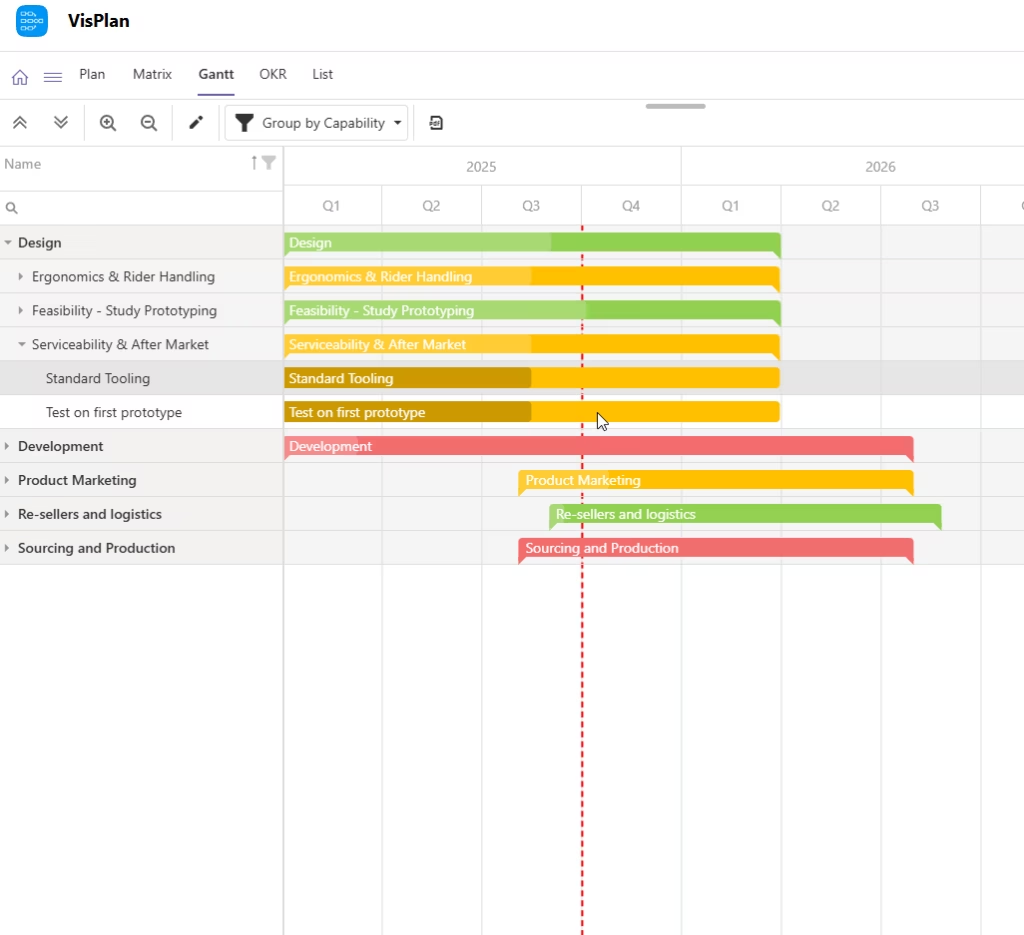
Use Ctrl + mouse wheel to zoom the timeline.
- Zoom in for day/week detail.
- Zoom out for month/quarter overview.
VisPlan remembers your zoom level when you leave and return to the Gantt view.
Change grouping
Use Group by in the toolbar to change how Actions are listed.
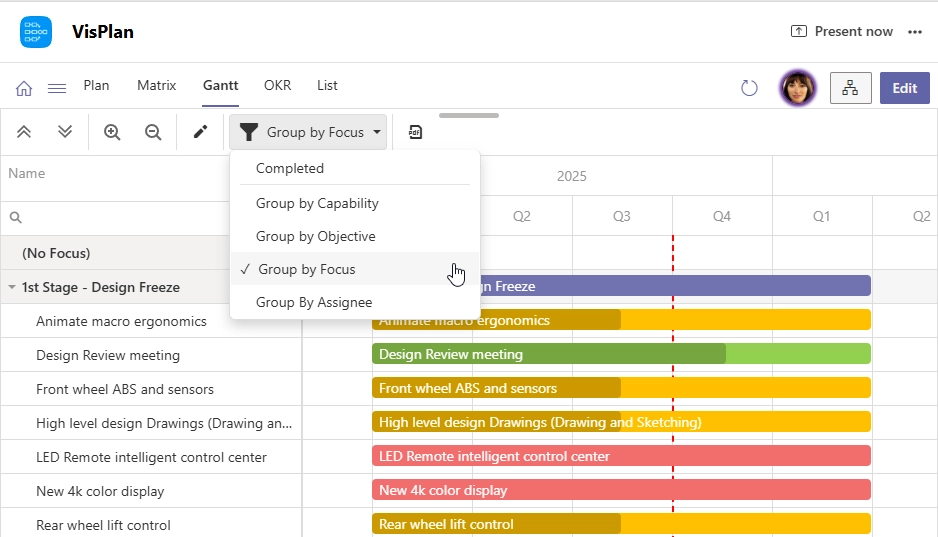
- Capability (default structure)
- Focus (sprint or time period)
- Assignee (owner/workload view)
VisPlan remembers your selected grouping.
Expand and collapse sections
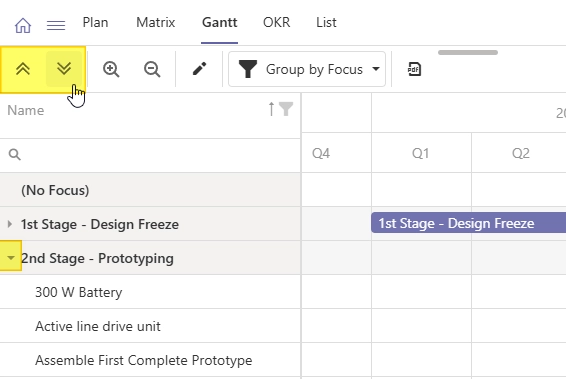
Click the arrow next to any group name to collapse or expand that section.
This helps you focus on one capability or team area at a time.
Click the Double arrows in the menu to Collapse or Expand all.
Reschedule directly in Gantt
You can update dates directly from the timeline:
- Enter Edit mode
- Drag the whole bar to move start and due dates together.
- Drag right edge to change due date.
- Drag left edge to change start date.
Changes are saved automatically.
Simple tips
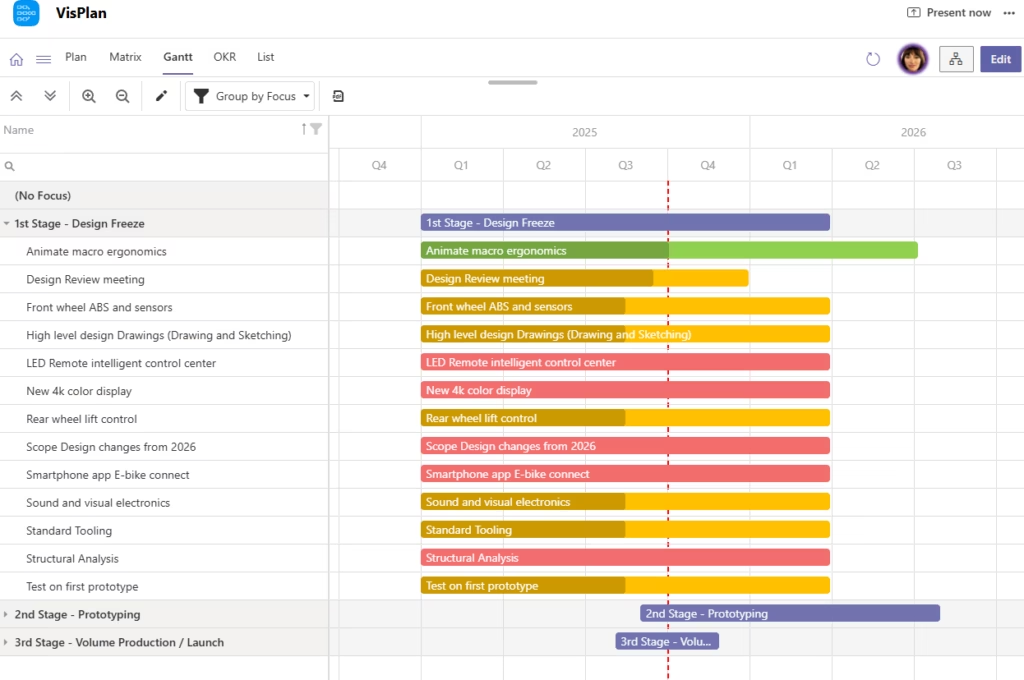
- Use Focus grouping for sprint planning.
- Completed actions are hidden by default. To show them, select Completed in the grouping selector.
- Use Assignee grouping to balance workload across team members.
- If something is missing in the Gantt view, check that the action has start and end dates set.