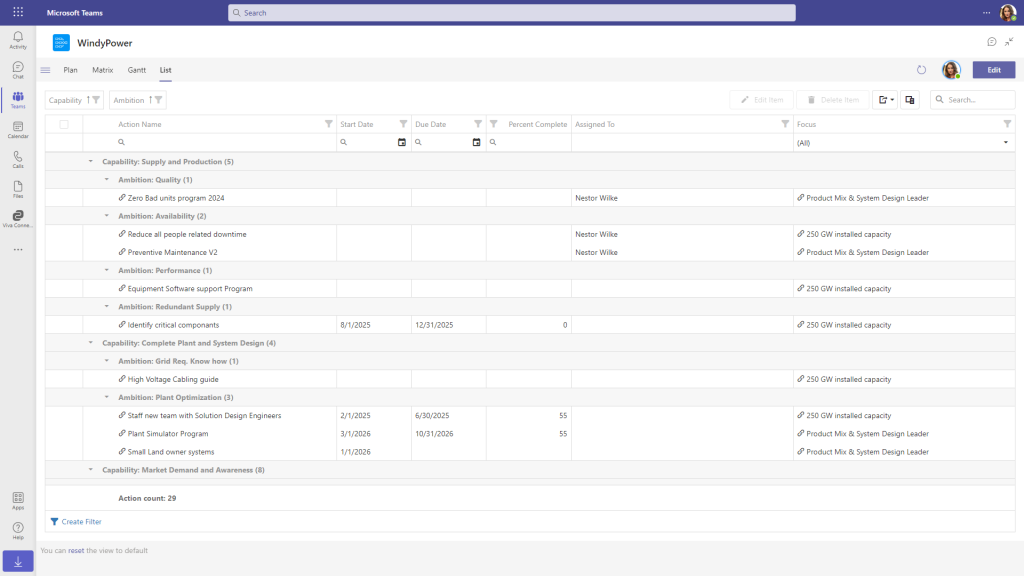
This article will walk you through the various features and functionalities of the List view, helping you to navigate and utilize it effectively for your tasks.
Video Guide
To get a detailed visual explanation, please watch the video below:
Key Areas and Features
Grouping Area
Function: Drag and drop any column header to group by that column.
Default Grouping: Initially grouped by Capability and then by Ambition.
Column Headers
Arrangement: Drag column headers to rearrange them.
Sorting: Click a column header to sort in ascending or descending order.
Filtering: Click the funnel icon to filter each column.
Detailed Filtering
Magnifying Glass Icons: Use these icons to apply detailed filters on each column.
Operators: Click the magnifying glass icon to use various operators for filtering.
Main Display Area
Content: Displays the current filtered actions.
Link Icon: Click to navigate to the plan view and select the item, making it easier to locate items in the visual plan.
Action Count
Display: Shows the number of actions currently displayed.
Filter Editor
Function: Open the filter editor to refine and build advanced filters with multiple operators.
Clear Filters: Click Clear to remove filters or Reset to return to the default view.
Editing Actions
Double Click: Double-click a row to open the Action form for edits.
Edit Button: Select items and click the Edit item button to make changes.
Delete Button: Select multiple actions and click the Delete item button to remove them.
Exporting Data
Export Icon: Click to export the current view or selected items to an Excel spreadsheet.
Options: Choose Export all data for the current view or Export selected rows for specific actions.
Column Chooser
Function: Click the column chooser icon to select which columns to include in the view.
Search Box
Function: Searches for any occurrence across all columns.
Edit Mode
Function: Switch to Edit mode to edit all actions in a grid view for efficient bulk editing.
Exit Edit Mode: Click done editing to exit.
Saving Settings
Settings are saved in your current browser/Teams client until you clear the filter or reset the view.
We hope you find the List view in VisPlan useful for managing your tasks efficiently.